Smart Screenshot Renamer: AI-Generated Filenames That Actually Tell You What's Inside
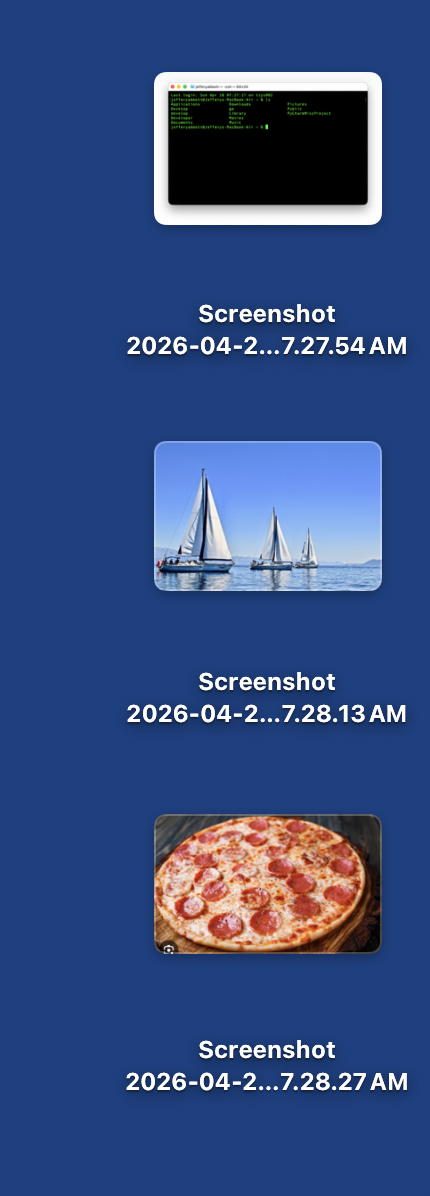
Open your Downloads or Desktop folder and you will probably find a graveyard of screenshots with names like "Screenshot 2026-04-26 at 7.28.13 AM.png". They are useless. You cannot search for them, you cannot tell them apart in a list view, and finding the one you need means opening every single thumbnail until you spot it. VoxyAI fixes this with Smart Screenshot Renamer, a workflow that watches for new screenshots and automatically renames them with descriptive AI-generated names based on what is actually visible in the image.
The Problem With Default Screenshot Names
macOS names every screenshot with a timestamp. That is fine for the first five minutes, while the file is still on your Desktop and you remember why you took it. A week later, those names tell you nothing. You end up with folders full of files that all look identical in a Finder list, and the only way to find a specific one is to flip through previews one by one.
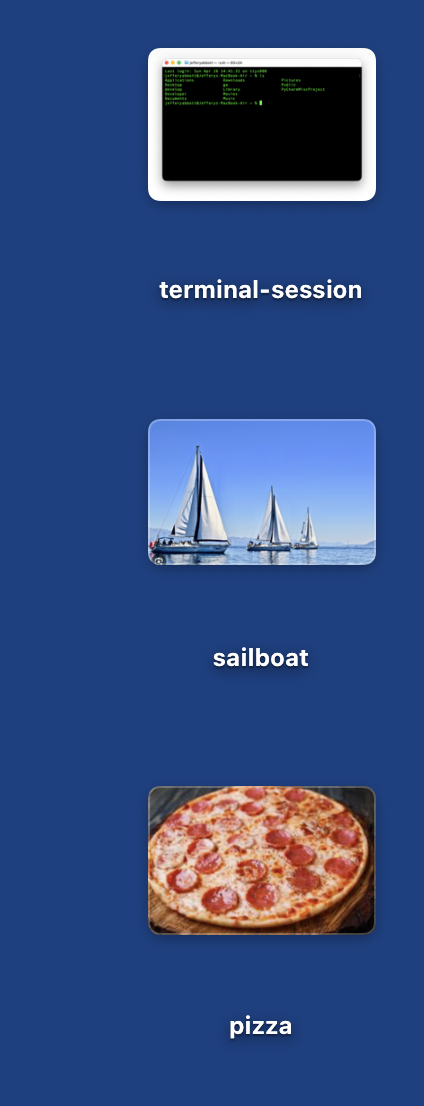
After Smart Screenshot Renamer is enabled, the same three screenshots get filenames that describe their contents. A terminal session becomes "jefferyabbott-terminal-session.png". A photo of sailboats becomes "sailboat.png". A picture of pizza becomes "pizza.png". The files are instantly searchable, instantly scannable, and instantly useful.
How Smart Screenshot Renamer Works
The workflow runs entirely in the background. You take a screenshot the way you always have, with Shift-Command-3, Shift-Command-4, or any third-party screenshot tool that saves to disk. VoxyAI handles the rest:
- Detection. VoxyAI watches your screenshot folder (typically the Desktop) for new image files. The moment a screenshot lands, it is queued for processing.
- Vision analysis. The image is sent to a vision-capable AI model, which examines what is actually in the picture, text, objects, scenes, UI elements, charts, code, anything visible.
- Filename generation. The model returns a short, descriptive, filesystem-safe name that captures the essence of the image. No timestamps, no special characters, just a name a human would actually choose.
- Rename. VoxyAI renames the file in place. The new name shows up in Finder within a second or two of the screenshot being saved.
Because the rename happens in place, your screenshot stays right where macOS put it. No moving files, no new folders, no surprises. The only thing that changes is the name.
Privacy Controls
Smart Screenshot Renamer needs to send images to a vision model to figure out what is in them, and that has obvious privacy implications. VoxyAI gives you full control over which provider sees your screenshots.
- Local-only mode. Route screenshots to a local vision model running on your Mac, such as a multimodal Ollama model. Nothing leaves your device, even temporarily.
- Cloud providers. Use OpenAI, Claude, or Gemini if you prefer the speed and accuracy of cloud vision models. You bring your own API keys, so VoxyAI never sees your data.
- Per-app control. Smart Screenshot Renamer only acts on the screenshot files you point it at. It never reads other images in your folders, and it never opens files it was not asked to process.
If you handle sensitive material, point the workflow at a local model and the screenshots stay on your Mac. If you want the best possible filenames and your screenshots are not sensitive, point it at a cloud model and let it work.
Setting It Up
Smart Screenshot Renamer is a built-in workflow, so there is nothing to install. Open VoxyAI, go to Actions & Policies, and switch to the Workflows tab. You will see a row labeled Smart Screenshot Renamer with a checkbox to turn it on.
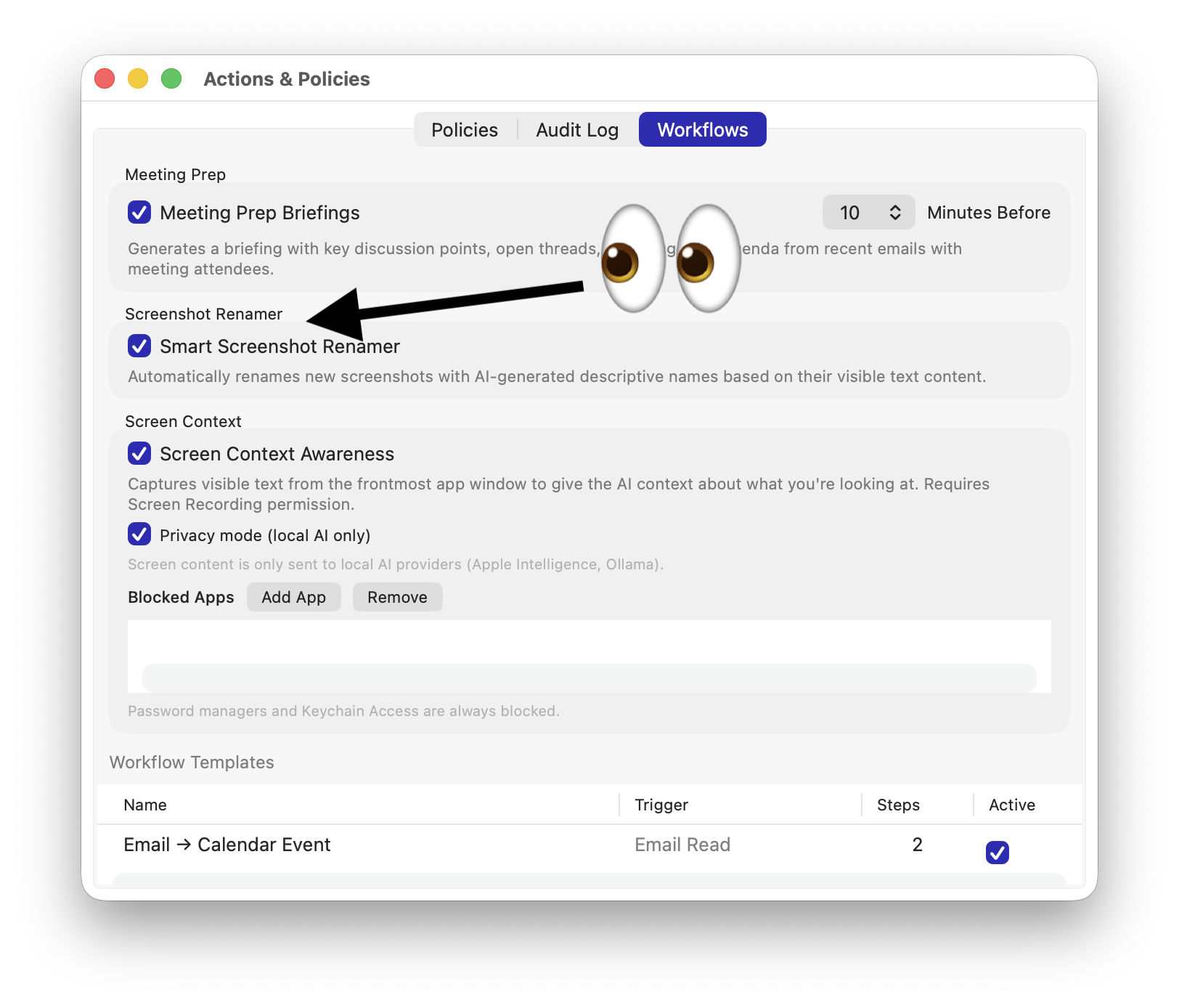
Once enabled, the workflow starts watching for new screenshots immediately. Take a screenshot, give it a second or two, and watch the filename update in Finder.
Why It Matters
Naming is one of those tiny, low-stakes annoyances that adds up over a year of work. Every screenshot you save is a future moment of friction: the moment when you need to find it, cannot remember when you took it, and have to flip through a dozen previews to figure out which one was the right one. Smart Screenshot Renamer removes that friction at the moment of capture, before the bad name has a chance to become a problem.
It is the kind of thing AI is genuinely good for. The model does not need to be brilliant. It does not need long context windows or chain-of-thought reasoning. It just needs to look at an image and say what is in it, which is something modern vision models do quickly, cheaply, and well. VoxyAI puts that capability exactly where it is most useful: in the boring middle of your file system, fixing a paper cut you have been living with for years.
Try VoxyAI Free
The AI assistant for your Mac that takes action on your behalf. Works with free local models or bring your own API keys.